Preface
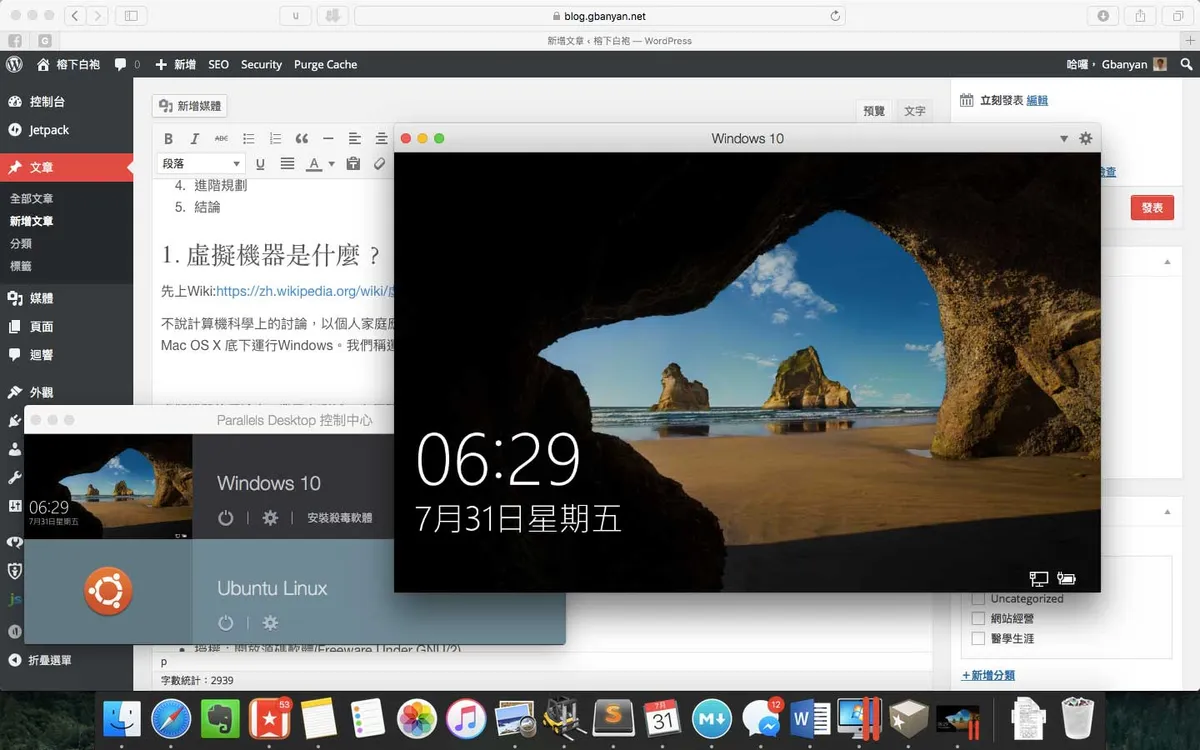
When classmates around me buy a Mac, the first complaint is often about compatibility issues with the Windows environment, such as the school website strictly requiring IE, or some Office formats skewing on Mac. This article introduces a solution perfectly compatible with Windows within Mac OS X - using a virtual machine.
Table of Contents
- What is a virtual machine?
- Virtual machine software
- VirtualBox
- VMware Fusion
- Parallels Desktop
- Basic operations of a virtual machine
- Advanced planning
- Conclusion
1. What is a virtual machine?
First, to the Wiki: https://en.wikipedia.org/wiki/Virtual_machine
Setting aside discussions in computer science, looking at the personal home application market, virtual machine software allows you to run another operating system under the execution of the current operating system, for example, running Windows under Mac OS X. We call the operating system running the virtual machine software itself the host, and the operating system running inside the virtual machine the guest.
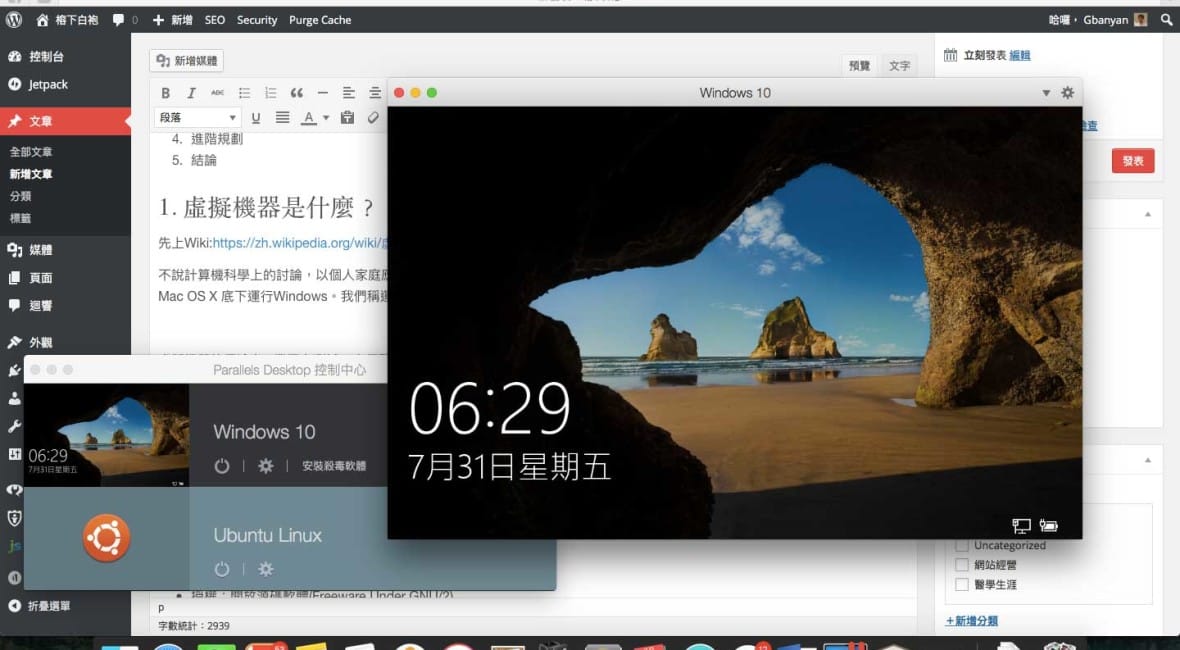
In the IT industry, virtual machines are used for testing, facilitating software development, server deployment and allocation, etc. But in the home market, they are primarily used to resolve software compatibility issues, such as wanting to run Office under Windows, or running some online banking software that requires Internet Explorer.
Since hardware performance resources are allocated by the host operating system during the computer's operation, the virtual machine needs to request resources from the host operating system to reallocate to the guest operating system. Therefore, the guest operating system performs less optimally when running. For the gaming needs frequently asked about among Mac OS X users, this point needs to be considered.
2. Virtual Machine Software
In the Mac OS X home market, there are three main virtual machine software options: VirtualBox, VMware Fusion, and Parallels Desktop. Here is an introduction to each:
VirtualBox
- License: Open source software (Freeware Under GNU/GPL 2)
- Cost: Free
- Official Website: https://www.virtualbox.org
- Wikipedia entry: https://en.wikipedia.org/wiki/VirtualBox
- Performance: ***
- Functionality: ***
- Supports Boot Camp: No
VirtualBox is a virtual machine software introduced by Sun Microsystems. Its feature among the three software is that it can be used without any cost and has a Chinese interface, but in terms of feature support and performance, it is the lowest of the three.
Additionally, it does not support directly reading Windows data and running from an existing Mac Boot Camp partition.
VMware Fusion
- License: Commercial software
- Cost: Paid
- Official Website: http://www.vmware.com/tw/products/fusion
- Performance: ****
- Functionality: ****
- Supports Boot Camp: Yes
VMware Fusion is a virtual machine software released by the company VMware. VMware holds a leadership position in the virtual machine industry and has the best compatibility across different platforms. If you want to run and test Linux under Mac, I would recommend VMware Fusion.
The downside is the lack of a Chinese interface, and advanced settings are less friendly to Chinese users. Perhaps this will improve in the future.
Parallels Desktop
- License: Commercial software
- Cost: Paid
- Official Website: http://www.parallels.com/tw/products/desktop/
- Performance: *****
- Functionality: *****
- Supports Boot Camp: Yes
Parallels Desktop is the virtual machine software with the highest market share among Mac users, but it is also the most expensive. Based on the company's current strategy, matching Mac OS X updates, they release a new version every summer and will continuously maintain the previous version to support the previous version for two years or up to two generations of the latest macOS releases. If you constantly chase the latest version, even with upgrade discount prices, it remains a considerable expense.
Its interface is the friendliest among the three, it has Chinese support, and for Windows support under Mac—including functionality and performance—it is the best of the three. But for other platforms, it falls short of VMware Fusion; for Linux, for example, I'd call it half-baked.
August 20, 2015 Update: Parallels Desktop 11 is released, and starts dividing into a standard one-time purchase edition and a subscription-based pro edition. For a detailed comparison, you can look here.
3. Basic Operations of a Virtual Machine
Creating a Virtual Machine
When virtual machine software creates a guest operating system environment, it first creates simulated hard drive files and related configuration files, storing them centrally in a single folder. All changes within the guest operating system will be written to that simulated hard drive file. In other words, moving or copying this folder is equivalent to moving or copying the entire virtual machine.
Take the Parallels Desktop virtual machine document file as an example.
Some software also supports reading Boot Camp partitions directly.
Additionally, virtual machines all support mounting external image files. This means reading an image file from the host operating system and mounting it to the guest operating system, acting as an external optical drive for the guest. If you want to install an operating system, you can download the original operating system image file and then read and install directly from that image file.
Turning Virtual Machines On and Off
- Pause: Only stops CPU operation; all memory occupation remains, so it still consumes power. Pausing and resuming only take a moment.
- Suspend: Saves all current states of the virtual machine, including running programs and edited documents, to the hard drive. The suspend process requires waiting for the time it takes to write to the hard drive.
- Shut Down: The meaning is equivalent to pressing shut down inside the virtual machine.
- Restart: The meaning is equivalent to pressing restart inside the virtual machine.
- Stop
Parallels Desktop power operations
VMware Fusion power operations
VirtualBox basic operations
Virtual Machine Operation Assists
For hardware support such as USB devices, printers, Webcams, etc., virtual machine software can certainly transfer control to the guest operating system, but the completeness of the functionality depends on the software tool suite provided by the virtual machine software.
In addition to packing drivers for the guest operating system to enhance display and computing performance, this kind of tool suite also provides some convenient communication bridges, such as:
- Drag and Drop: Freely drag files from the host OS to the guest OS, and vice versa.
- Clipboard Sharing: Seamless copy and paste; that is, copying or cutting a piece of data or file in the host OS allows you to directly paste it in the guest, and vice versa.
- Shared Folders: Opening data from the host OS for the guest OS to read in the form of network shared folders or mounted network drives.
You can set up shared folders in the Parallels Desktop options.
4. Advanced Planning
Hardware Resources
Because a virtual machine is just like operating a complete machine, how much hardware resource to allocate is defined by the simulated software interface. The factors to consider for how much hardware resource to allocate are just like assembling a machine: purposes (document processing and web browsing, gaming, simulation computing) and whether speed or mobility is the priority both have corresponding adjustment options.
Generally speaking, the virtual machine's settings window for regulating hardware resources provides a reference range of suggested values. Additionally, if creating a new virtual machine, by detecting the operating system to be installed, the virtual machine software will also automatically provide the minimum required hardware resources, such as Windows 7's minimum configuration of 1 GB of memory.
The Parallels Desktop software directly provides different setting recommendations for productivity, gaming, design, software development, etc.
Snapshots
Virtual machine software provides a special feature: Snapshot.
A snapshot is actually somewhat similar in logic to a Windows restore point. Creating a snapshot of the virtual machine's current state is like freezing time, meticulously preserving the state of the virtual machine at that moment, including files, installed software, system updates, and open programs.
For those in the habit of frequently reinstalling Windows, you can take a snapshot right after installing Windows. That way, if it gets infected by a virus or runs into problems in the future, you can use the virtual machine software's snapshot restore function to return to the state right after reinstallation.
Shortcut Key Mapping
Different operating systems have different basic logic for shortcut keys, which sometimes might conflict. You can adjust the shortcut key mapping.
5. Conclusion
If you encounter software or web pages that must be run under Windows, Mac OS X can resolve the issue by simulating a complete Windows environment through virtual machine software. If you only want to run Windows, in terms of feature support, performance, and interface user-friendliness, Parallels Desktop is the best, which is also reflected in its market share, though it is the most expensive. If you don't want to spend money, VirtualBox is undoubtedly the best choice.
Operating a virtual machine is like reinstalling a computer; you need the original operating system installation image file, while the various drivers are the software tool suites provided by the virtual machine software, used to build the bridge between the host and guest operating systems. Grasping the basic principles and understanding the differences between virtual machines and real operating systems will allow you to easily master different operating systems on Mac OS X, letting all sorts of compatibility issues be effortlessly resolved.