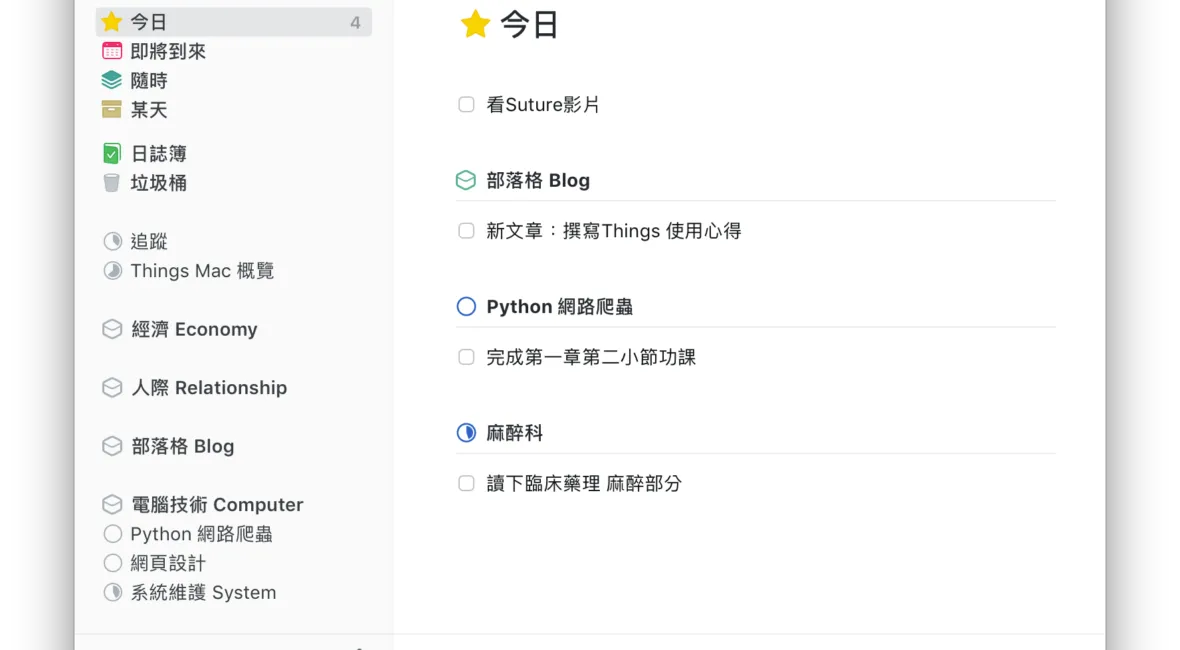
After many years, the Things development team has finally updated the Things App on Mac OS X, delivering an elegant and streamlined user experience. Even those who don't understand the GTD concept can easily get the hang of it, making their lives more proactive and goal-oriented!
First Impressions of Things 3: Clean, Elegant, Simple
A trendy term these days is "good looks", and without a doubt, at first glance, the interface of Things 3—with its understated light gray background and simple two-column sidebar design—won me over completely. The official documentation is directly crafted as a to-do list; when you want to explore and learn, you can simply click and read.
My requirements for productivity tools mainly cover a few aspects: organized readability, comprehensive keyboard shortcut support, a clean and fluid operational workflow, and ideally, support for extensions/integrations to work alongside other tools. In terms of readability, Things 3 utilizes simple animations and color layering effects to create a comfortable user experience.
Mac App Store Link, iPhone and iPad versions are also available, charged separately
Exploring the Concept: A Planning Philosophy Focused on "Today"
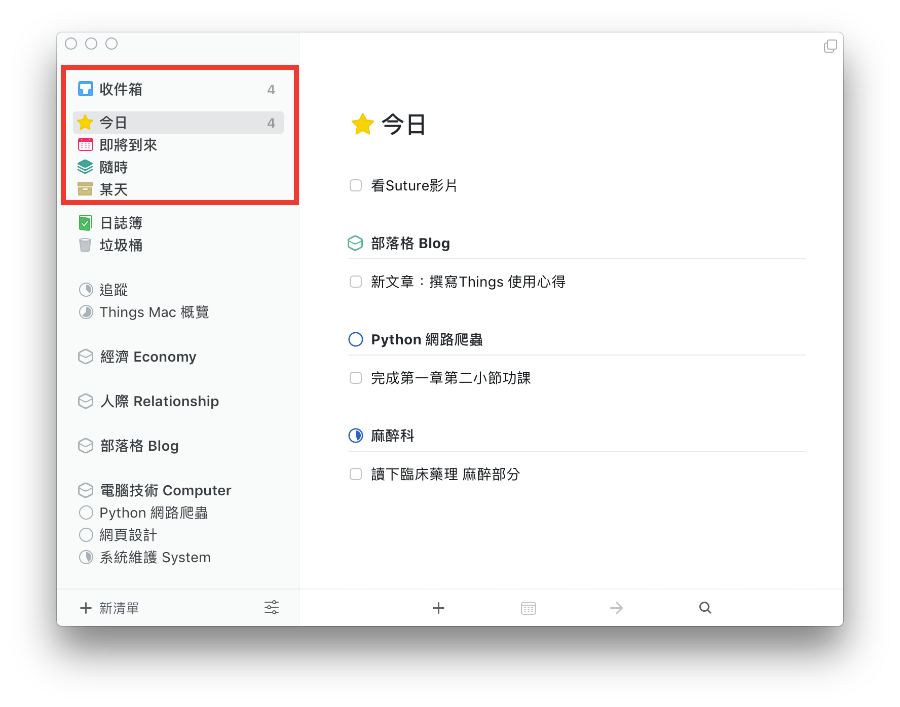
Having used apps like OS X's built-in Reminders and Wunderlist, the default time categories in Things 3—"Today," "Upcoming," "Anytime," and "Someday"—are comparatively its most distinct feature. Hoping users can focus on the present without procrastination, Things has greatly simplified the workflow of putting tasks into "Today", including:
- When adding or clicking any existing task, ⌘ + T (Today) or ⌘ + E (Evening) can place it directly into the "Today" time category.
- All unfinished tasks from the previous day will remain in the "Today" category of the following day.
- Scheduled tasks will automatically appear in the "Today" category once their scheduled date arrives.
The team behind Things 3 mentioned that their envisioned workflow allows users to brew a cup of coffee in the morning and prepare for the day's work, or right before getting off work, to organize their task lists directly in the "Today" view.
The ordering of Upcoming, Anytime, and Someday reflects the urgency and pressing nature of tasks. As users categorize their to-dos, they naturally sort out the priorities.
Keyboard Shortcut Support
As mentioned earlier, I expect full keyboard shortcut support when using productivity tools. In the workflow of managing tasks, Things 3 provides shortcuts for many detailed actions, which genuinely speeds up operations.
1. Search Anywhere, Switch Quickly
In any view of Things 3, just start typing to search. The search targets include Areas, Projects, Headings, and the titles and notes of tasks. Because it includes titles, it can also be used to quickly switch to a desired category. Furthermore, ⌘ + 1, 2, 3, 4, ... sequentially switch through the left sidebar items from top to bottom: "Inbox," "Today," "Upcoming," "Anytime," and "Someday."
2. Add Task > Post-Processing
Using ⌘ + N and other modifier keys to add headings, projects, and other layers is a common logic across many apps, so I won't elaborate much here. What I want to describe is how smoothly you can continue processing after adding a task.
After typing a title in the new task window, pressing Tab switches to the notes section for detailed input. ⌘ + T places it directly into "Today," or you can use shortcuts for other corresponding time categories. ⌘ + S (Schedule) lets you arrange a specific date and set a reminder (which will automatically pop up on all synced devices, including iOS). ⌘ + Shift + M moves it to a different list.
3. Summon the Add Window Anytime, Even Outside Things 3
As long as the shortcut is configured, whether you're browsing the web or checking emails, you can quickly enter tasks without switching to the Things 3 window. After installing the Helper, you can even select text and quickly add it, saving you from manually typing long paragraphs.
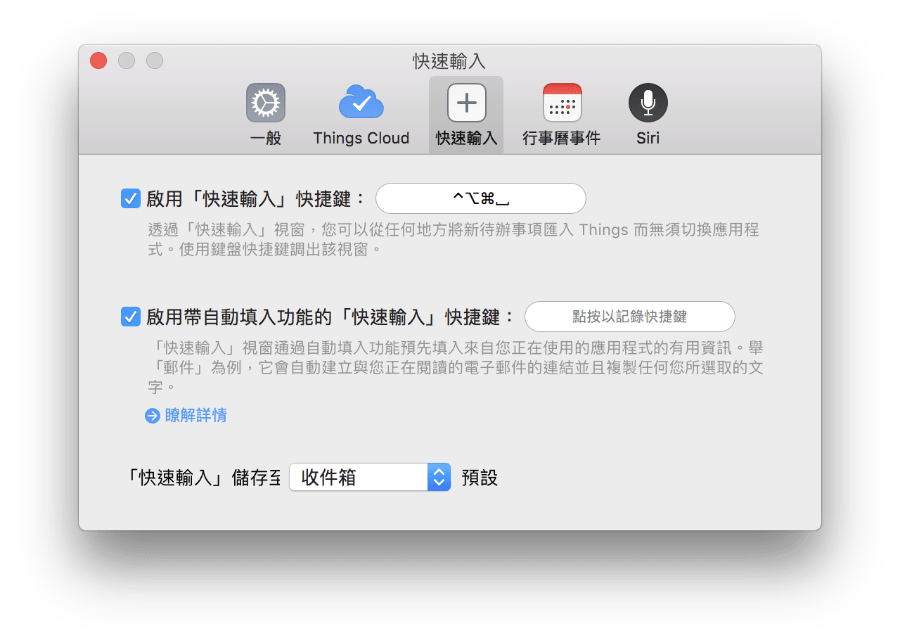
Official Shortcut Guide: https://support.culturedcode.com/customer/en/portal/articles/2785159
The Concept of Hierarchy: Areas, Projects, Headings, To-Dos, and Checklists
Note: The Chinese translation of the app in this section is inconsistent.
The titles listed above represent the hierarchical structure of Things 3. Areas can easily distinguish between personal, financial, and work spheres. For example, I have categories for personal health, family, learning, hospital work, etc. A Project acts more like a planned combination toward a major goal, based on the concept that breaking down abstract goals into detailed steps for concrete actions is more efficient.
In Things 3, the project title icon is represented by a pie chart showing the percentage of completion. Completing each task under a project means moving one step closer to finishing the project. Within a project, simple distinctions can be made using different Headings. And every task can be broken down into countless Checklists.
Of course, everyday chores don't always have to be forced into a grand project list; they can simply be added directly to the Inbox or any Area, giving you complete freedom.
Additionally, Things 3 introduced recurring tasks in a subsequent update, allowing you to set custom repeating cycles.
Integration
Import
To make it easier for users of other to-do apps to switch to Things 3, the development team also provides several import methods. I used to be an avid Wunderlist user, and I was thrilled to find that Things 3 supports importing, sparing me the effort of manual re-entry.
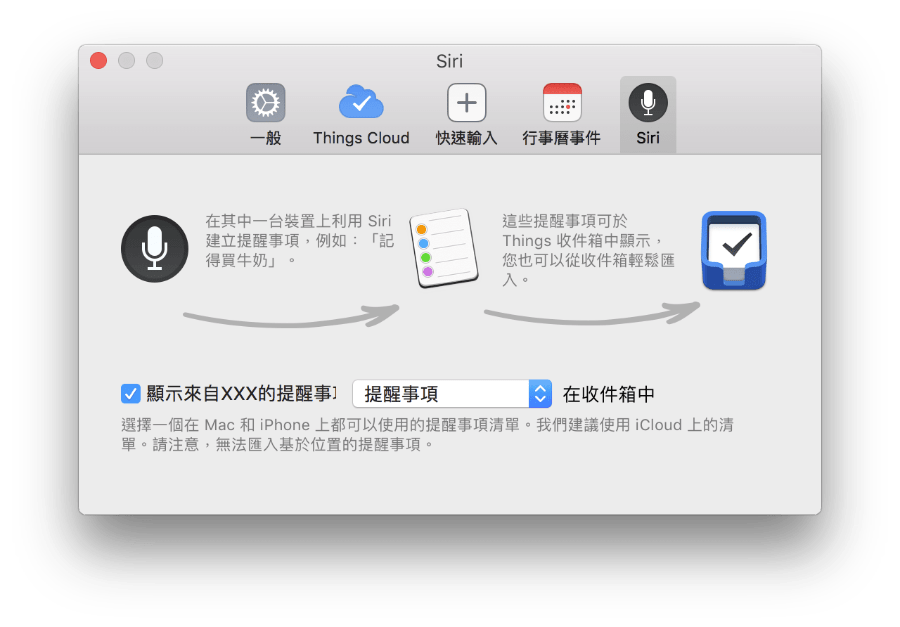
Call Siri!
Using Apple's built-in Siri voice input is very fast if you're accustomed to it. Unfortunately, it defaults to Apple's built-in "Reminders" App. However, Things 3 handles this cleverly by requesting access to "Reminders"; it automatically scans and imports them directly. Thus, after speaking a task to Siri on Mac OS X or an iOS device, it will automatically be collected into Things 3.
Integration with Other Apps
Because Things is such an excellent task management app, other apps might also design shortcuts to collect items into Things. For instance, Airmail automatically detects time references in email contents and color-codes them. With a single click, users can create a task for that time in Things 3 and copy the email body into the task's notes.
Shortcomings
Despite its power, Things 3 also has some areas for improvement. I believe that compared to Wunderlist, Things 3 conspicuously lacks a team sharing mechanism; unlike Wunderlist, you cannot add collaborators to a list and assign tasks. The Chinese translation also has minor flaws. Furthermore, I hope Things 3 can add a dark mode, giving users the option to switch the white background for a dark theme.